A virtual office for your team

Take a seat.
The office is open.

Walk your avatar around the map and just start talking to whoever is nearby. No more trading meeting links or pinging “got a minute?” before you can say a word.

Joe
Ken
Yui
Emi
Akira
You
Joe
1 tile
Stand next to someone: 100% volume.
No clicks, no approvals
20 people
Designed for 20 concurrent users.
One organization, many rooms
Self-hosted
Runs on your own VM with Docker.
No monthly per-user fees
5 layers
Body, eyes, outfit, hair, accessory.
Over 100 million combinations
Proximity

Distance shapes the conversation

You don’t start a conversation. You walk up to one. The number of tiles between two avatars is all it takes to set the volume and decide whose video you receive.

You
100%
1 tile
80%
2 tiles
60%
3 tiles
40%
4 tiles
20%
5 tiles
Silent
6+ tiles
Teammate

Walk up and talk

The moment you step onto the next tile, you’re at 100% volume. Nothing to unmute, no room to join. Asking “got a sec?” is as simple as getting up from your desk.

Walk away and it fades

Audio fades smoothly over 5 tiles. Beyond that, you stop receiving the other person’s audio and video entirely, so chatter across the room won’t break your focus.

Meeting rooms stay private

Inside a meeting room zone, everyone hears everyone at 100%, whatever the distance. The server keeps inside and outside as separate calls, so no audio or video reaches anyone outside.

Features

Ready to use today

Walking, talking, and meeting are all built in, along with the small tools you’ll reach for every day.

Captions & translationBetaSending my mic
Captioning 02:14StopTranslate toEnglish
Emiこのタイル、来週まとめて差し替えますWe'll swap out these tiles next week.
JoeCan you share the map file before then?その前にマップのファイルを共有してもらえますか?
Meiあとで Drive に置いておきますFixedI'll drop it in Drive later.
New

Live captions & translation

Beta

Speech in a meeting room is transcribed on the spot, translated between Japanese and English, and shown on everyone’s screen. Once one person turns captions on, anyone who joins later sees them too.

So no one is left waiting, the original text appears first and the translation slides in right after. Recognition errors are fixed along with the translation, and corrected lines are flagged (you can still check the original right there). Shared-mic mode covers rooms where several people sit around one speakerphone.

Meeting Room A · 4 people here
Akira
Emi
Sho
Mei

Meeting rooms

Step into a zone on the map and you’re in a meeting where everyone hears everyone equally, regardless of distance. The server splits inside and outside into separate calls, so your voice never leaks out. No links to share, no one to let you in.

Screen share

Anyone on a call can share. When sharing starts, the view switches to focus mode automatically and everyone’s cameras move to the side. Click any video tile to make it the main view.

Riku
All audio & video paused

Quiet mode

One click stops all incoming and outgoing audio and video. Whether you need to focus or step away, this one button covers it. Your avatar on the map and your video tile both show that you’ve gone quiet.

KenReview in Meeting Room A at 10, everyone
MeiGot it, I’ll post the slides later
JoeMind if I swap this tile for a desk?
NearbyType a message

Chat

Send messages to everyone or just the people nearby. Older messages gradually fade, so chat never gets in the way when you’re just glancing at it. There’s also a Niconico-style mode that scrolls messages across the whole screen.

👏Hana
🎉Yui
👍Leo
👍👏🎉😂❤️🙏😮🔥✅🤔☺

Reactions

React without saying a word, with 10 go-to reactions plus a palette of about 280. Reactions float along the left side of the screen, showing who sent them.

Stand-up in progress
NowJoe
NextEmi
0:18
  • 1Mei
  • 2Ken
  • 3Joe
  • 4Emi
  • 5Akira
Next speaker

Stand-up facilitation

Gather at the stand-up spot on the map and the morning meeting begins. A speaking order and timekeeper kick in, and the timer changes color as time runs low. The list follows whoever is speaking, so no one is left wondering when it’s their turn.

AI note-takerBeta
Recording 12:48Stop & write notes
Draft meeting notes
  • 3 review comments, 2 to fix this week
  • Emi will handle the tile swap
  • Next: Friday at 10:00, same room
Emailed to attendees after the meeting

AI note-taker

Beta

Transcribes what’s said in a meeting room and drafts the meeting notes. When the meeting ends, they’re emailed to everyone who was there, and you can save them to Google Drive. Everyone in the room can see when recording is on, so no one is ever recorded without knowing.

Create an invite link
Meeting roomMeeting Room AExpires in1 hour
Create link
Link created. You can copy this URL only now.https://example.com/g/8f2c…Copy
Interview: Candidate AActiveLast week’s meetingExpired

Invite links

Invite people from outside your company with a one-time URL, no account required. Choose which meeting room they can enter, when the link expires, and how many can join at once, then revoke it when you’re done.

More features

Proximity chat

Calls connect automatically when you get close. Volume changes smoothly via WebAudio, and you can boost just the people who are hard to hear, up to 200%.

Availability status

Available, Busy, or Away, shown in the same color above your head and on the minimap.

Minimap

See who’s where at any moment. Switch between two sizes.

Shared Pomodoro

Run one timer together with everyone in the room. During focus sessions, your status switches to “Focusing” automatically.

Announcements

Send a notice to everyone in the room with a sound and an on-screen toast.

Calendar integration

Shows your Google Calendar events and whether you’re in a meeting.

Task integration

Browse GitHub issues and pull requests without leaving your desk.

Display modes

Choose Standard 2D, 2.5D for depth, or the lightweight Simple mode. Your choice is remembered next time.

Connection quality

On slow connections, you can lower the video quality you send and receive. Screen shares keep their resolution so text stays readable.

Works on phones

Tap to move, and use calls and chat. Phones switch to Simple mode automatically.

Roku, the recording pet

Take Roku along and it records the day’s conversations, then sums up what happened at the end of the day.

Meeting notes API

Pull meeting notes and audio from meetings you attended into external tools. Issue a token from your personal settings.

Your day

A day at the office

From the moment you arrive until you head home, every tool you need is right there on the map.

09:30

Arrive

Pick a room, check your mic and camera, then join. No video or audio is sent until you do.

10:00

Morning stand-up

Gather at the stand-up spot and the speaking order and timekeeper kick in. The timer changes color as time runs low.

11:00

Focus

Start a Pomodoro and your status switches to “Focusing” automatically. Teammates can see whether you’re free before they say a word.

15:00

Review

Gather in Meeting Room A and share your screen. The AI note-taker drafts the meeting notes as you talk.

19:00

Head home

Leave and you’re back at the room list. Anyone still around is welcome to crack open a drink in the lounge.

Build

Design your own floor plan

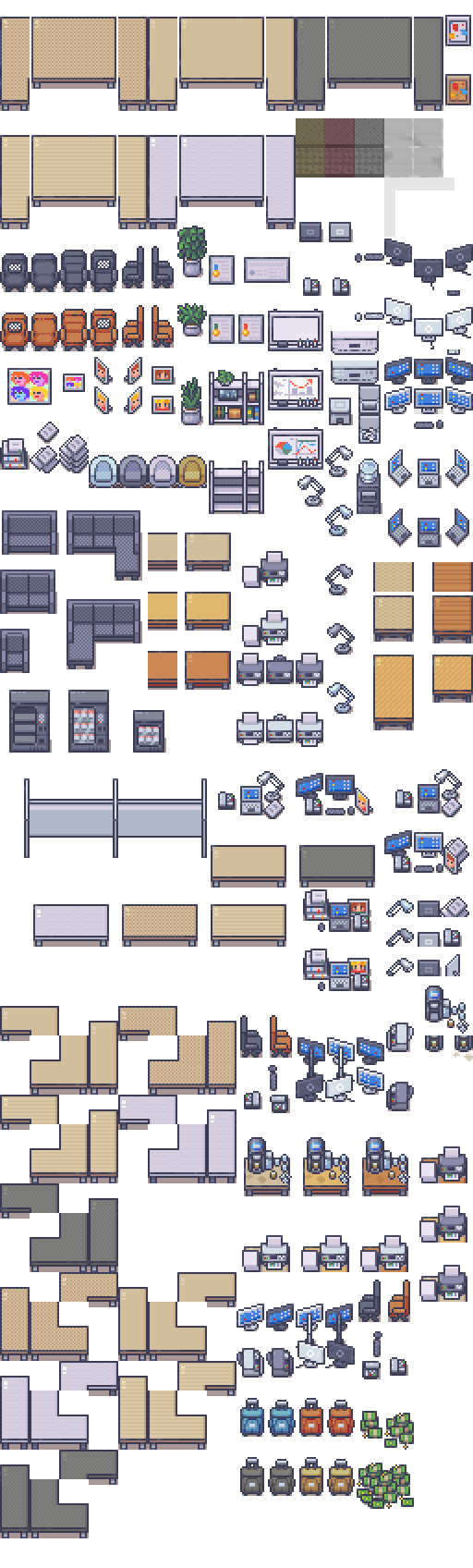
Your office isn’t handed to you. You build it. Place tiles on a 32px grid, and desks, meeting rooms, and lounges take shape.

Map editor

Edit floors, objects, walls, blocked tiles, and meeting room zones on the spot. Changes appear on everyone’s screen instantly. Only people with admin rights can edit.

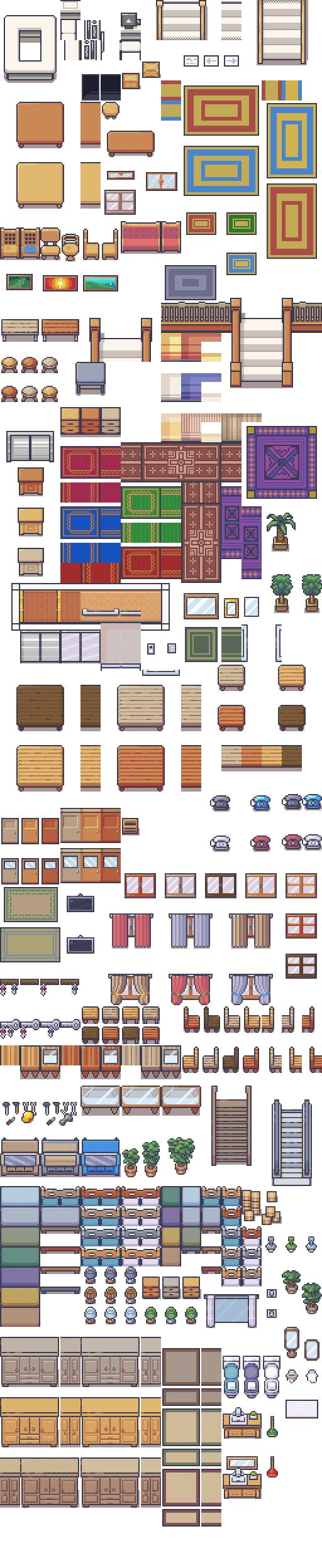
28 built-in tilesets, from offices and conference halls to everyday items. Start from a blank room or from a small, medium, or large office template.

Pick or build your avatar

Mix and match 5 layers (body, eyes, outfit, hair, and accessory), or simply pick one of 59 presets.

9 bodies × 7 eyes × 132 outfits × 200 hairstyles × 85 accessories (including none) add up to over 100 million combinations. The pixel art sits on a 32px grid and is drawn without interpolation, so outlines stay crisp when scaled up.

Scale

Whether you’re 3 or 200

One organization can have multiple rooms. Add floors as your teams grow, and add rooms as you open new locations.

Small teams

3–10 people / 1 room

Line up a few desks in a blank room and you’re ready. Everyone is in view, so stand-ups and small talk are just a few steps away.

Multi-site companies

A room per site + travel between sites

Set up a room for each location and walk straight to another site through doorways on the map. Admin rights are managed through organization roles.

Security

Your video
stays in-house

Calls run on LiveKit (Apache-2.0), deployed with Docker on your own VM alongside the app and database. Nothing passes through a managed video service, so internal conversations stay internal.

There are no monthly per-user fees, either. The only cost is the VM you provide.

Self-hosted

The app server, SFU, and PostgreSQL run together with Docker Compose on a single VM, with TLS terminated at your internal reverse proxy.

Sign in with Google

Authentication uses Google OAuth. Sessions live in httpOnly cookies, and the server issues short-lived JWTs for calls.

Role-based permissions

Only people with admin rights can create, edit, or delete maps, or change members’ roles.

One-time URLs for guests

Issue an invite link and people from outside can join just that room, without creating an account.

FAQ

Frequently asked questions

Can I use it on a smartphone?

Yes. Phones automatically switch to the lightweight Simple mode, where you can tap to move and use calls, meeting rooms, and chat. Admin tasks such as editing the map should be done in a desktop browser (the latest Chrome, Edge, or Safari).

Do I have to keep my camera on all day?

No. You can turn your camera and mic off separately. With your camera off, your video tile shows your avatar facing forward, so people still know who they’re talking to. To cut yourself off from conversations completely, use quiet mode.

Will a call start just because someone walks past?

Volume drops as the distance grows, and at 6 or more tiles away you stop receiving the stream altogether. With “Busy” and “Focusing” statuses plus quiet mode, people can tell whether it’s OK to talk before they even walk over.

What do we need to set it up?

A VM that runs Docker (roughly 8 cores, 16GB of memory, and 80GB of storage) and one domain reachable from inside your company. There’s also a workaround for environments where UDP ports can’t be opened.

Do we have to replace our existing tools?

No. It’s designed to work alongside what you already use, such as showing Google Calendar events and listing GitHub issues and pull requests. Meeting notes can also be exported to external tools through the API.

What about meetings with both Japanese and English speakers?

The live captions (beta) transcribe speech on the spot and add Japanese ⇔ English translations. Once one person starts captions, everyone in that meeting room sees the same captions.

Are there monthly per-user fees?

No. The only cost is the VM you provide. The app server, SFU (LiveKit), and PostgreSQL run together with Docker Compose on the same VM, without going through a managed video service.

How large a team can it handle?

It’s designed for teams of 3 to 200, with 20 concurrent users in mind, and one organization can have multiple rooms. Add floors as your teams grow, and add rooms as you open new locations.

Start by placing one desk

Put a single desk in a blank room and you already have an office. No training, no migration plan.

Reach out through our contact form. Technical questions before you commit are welcome too. The form is in Japanese, but feel free to write to us in English.